
Onboard intelligence, fully documented.
Best for cost-effective locomotion research, fairs and showrooms — lightweight, foam-padded, with interchangeable pick-and-place end-effectors.
From power-on to walking
The official Agibot X2 (AimDK) power-on and startup procedure — three supported methods depending on what support equipment is available.
Battery & power on
Slide the battery into the rear slot until it clicks — must show >50% charge before powering on. Short-press the battery button to wake, then long-press ~5 s to start; LEDs 1–4 illuminate sequentially within ~2 s, then settle to charge level. Allow ~1 minute for initialization — all joints enter zero-torque during boot.
Suspended / Gantry
Suspend the robot on a support frame, feet clear of the ground. Power on and wait for init, then lower until both feet contact the ground. L2+X → Standing Preparation, gradually lower the gantry until slack, then R2+X → Stable Standing before fully releasing the hook.
Supine / Lying
Lay the robot on its back, arms and legs extended, on a flat hard surface with a clear 0.5 m radius. Power on, verify all limbs face forward, then ↑+△ to auto-enter Stable Standing from supine.
Sitting
Seat the robot in a chair 35–40 cm high with a backrest. Power on; an operator holds the rear handle. ↑+X → Sitting-Prep, then ↑+□ to stand while the operator assists via the rear handle.
Drive with the Aim-Master
Once in Stable Standing, the left joystick sets walking direction (forward/back/strafe) and the right joystick sets rotation. The controller is pre-paired at the factory — press the central PS-logo button to connect.
Power off / E-stop
Normal shutdown: L2+X → Standing Preparation (supported from the rear handle), lower to the ground under control, then Zero-Torque via the safe path L2+R2+Create → L1+R1+Create, then long-press the battery button ~5 s to power off. Emergency stop: L1+R1+Create directly — relaxes all joints immediately, so mechanical support is critical.
Full procedure, safety warnings and packing instructions: Official Agibot X2 (AimDK) operation guide.
The same ROS 2 + webserver layer as the rest of the fleet
Illeon is AGIBOT's German distributor. The X2 runs the same webserver software stack as the A2 Ultra, adapted for a dual-arm biped — one contract, one point of contact, no separate SDK integration to figure out yourself.
Movement & Teleop
Locomotion via the Aim-Master controller's state machine (Standing Prep → Stable Standing → walking), or the webserver Cockpit's Drive/Strafe pads with live Vx/Vy/Vz/ωz velocity once modules are running.
Arm & Neck Control
Arms and neck can be driven from the webserver's Manipulation page (joint & Cartesian IK) via a separate x2-platform-arm module, started on demand once the motion controller hands the arm/head channels over. Toggling arm control reboots the motion-controller SoC (~30 s) — keep the robot supported and the workspace clear.
AI Chat Assistant
The same text/realtime-voice assistant as the A2, wired into ROS 2 tool-calling — available from the Cockpit's AI Chat panel.
SLAM & Navigation
Indoor/Outdoor 3D view over a live LiDAR point cloud, with SLAM mapping and Nav2-based map navigation, waypoints and skills (manipulation, audio, image annotation) — the same Cockpit tabs as the A2.
Diagnostics & Monitoring
Live battery (voltage/current/power/charge), per-joint position/velocity/effort, ROS 2 system health, and a topic viewer — the same Diagnostics page layout as the A2.
Engineering & Custom Hardware
The X2 ships with interchangeable end-effector options for pick-and-place work. Need a different picker or sensor? Our engineering team integrates custom hardware directly into the platform.
See it in the browser
A guided tour of the X2 webserver, captured directly from a live unit.
Driving the arms beyond the on-screen sliders
The Manipulation panel's Cartesian mode also accepts poses from external input devices, over the same arm-IK channel used by x2-platform-arm.
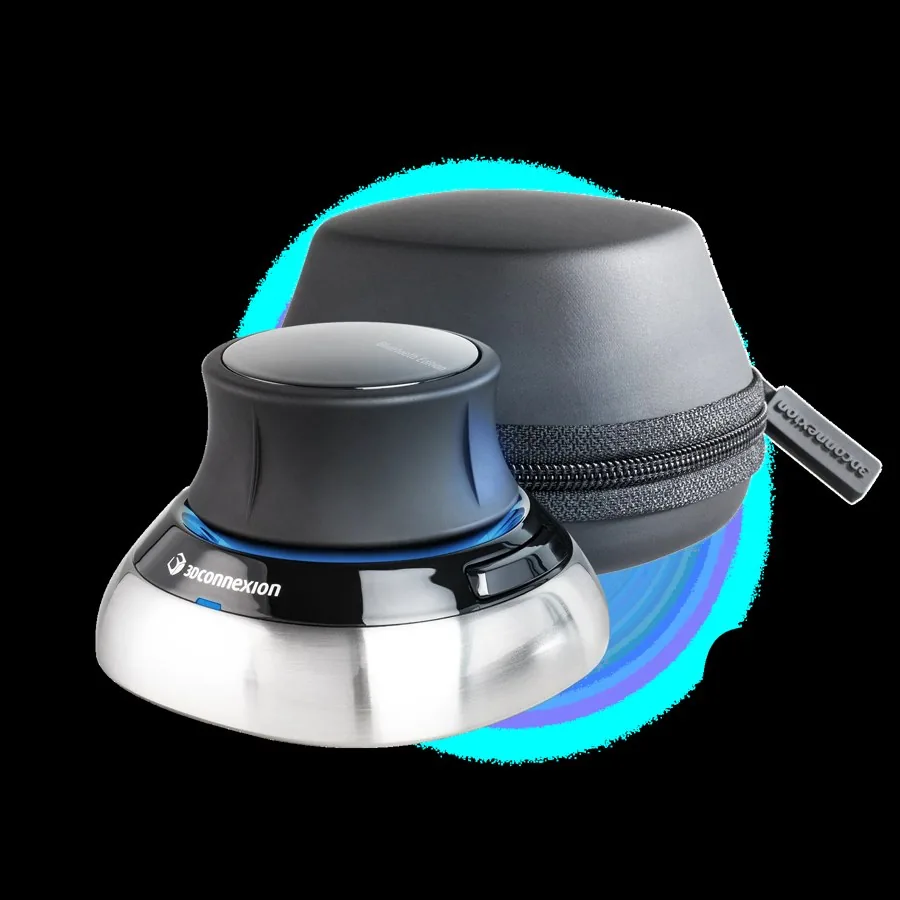
SpaceMouse
A 6-DoF desktop puck bridged straight into the arm-IK node — push, tilt and twist to move the end-effector in free space, no ROS required on the client.
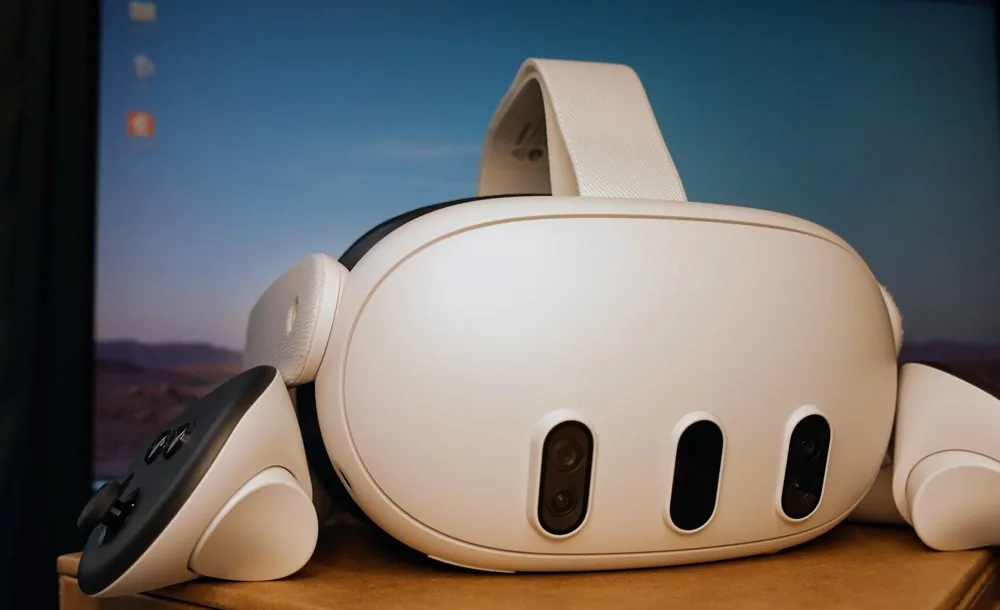
Meta Quest
Full VR teleop — put on the headset and drive the arms by moving your hands, no desk or cables required. Grip / trigger / A / B map to the end-effector pose and fingers; both thumbsticks drive the base.
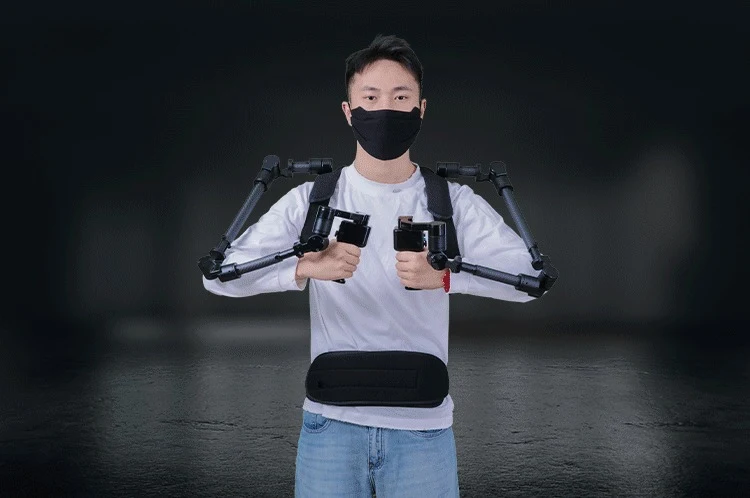
Foxtech ExoArm-7
A wearable exoskeleton leader arm — put it on and move your own arm, 1:1, no controller in hand. Drives the same Cartesian endpoint over USB as the on-screen sliders.
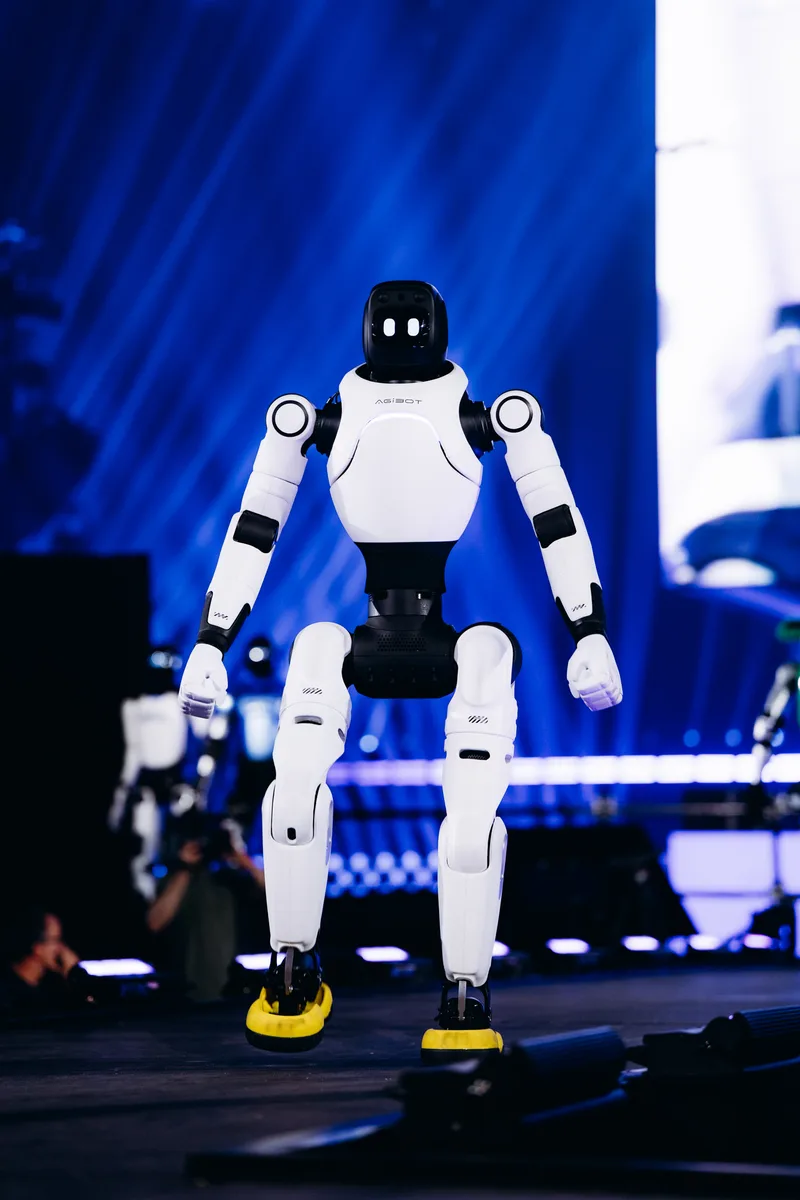
X2 on stage
The same platform live at events — not just a lab demo.

Manuals & official guides
The Illeon-specific X2 webserver guide is still being prepared — here's what's available today.
Official Agibot X2 (AimDK) Operation Guide
The manufacturer's own X2 operation guide: Aim-Master controller pairing, robot states and button combinations, startup/shutdown procedures, and the Agibot Go mobile app.
Open guide →X2 Robot Description (URDF)
Two variants, same skeleton: simplified is exactly the URDF + visual meshes the viewer above loads (~4.2 MB). Full is the complete x2_description package — URDF, full-resolution visual & collision meshes, and package.xml (~47 MB) — drop it straight into a ROS 2 workspace, RViz, or MoveIt.
Looking for the ILLEON X2 webserver guide or SDK docs? Ask us directly — full X2 documentation is in progress.
If something goes wrong
Three tiers, in order — we start at the fastest and only escalate as far as the problem actually requires.
Remote access via VPN
Most issues get diagnosed and fixed without anyone leaving their desk — but only once you switch it on. The robot's VPN link back to us is off by default; we have no standing access to a customer's robot, and it's activated on your side to stay clear of data-protection obligations. Once enabled, we connect in over VPN — or through a client device on-site if the robot itself can't reach us — and debug it directly.
Recovery box
If the robot's own networking is the problem, we ship a preconfigured recovery box to site. Plug it in and it opens a tunnel back to us — the same remote access as Tier 1, without needing IT support on your end.
Depot repair in Germany
For hardware damage or anything that needs hands-on work, send the unit back to us. Repairs happen in-house in Germany for a fast turnaround — no routing through the manufacturer.
Not sure which tier fits? Just reach out — support@illeon.de — and we'll triage it.
We're here for the whole deployment
Fleet rollout, a new use case, or a question about a specific webserver module — the Illeon team can help.
support@illeon.de