
Full-speed bipedal mobility, fully documented.
Best for dynamic, all-terrain mobile manipulation — running-capable bipedal locomotion up to 5 m/s, autonomous localization & navigation, and visual-servoed dexterous manipulation in one platform.
From the packing crate to standing & walking
A3 Ultra ships crated and lying flat. This is AGIBOT's own unboxing & operation flow, straight from the manufacturer's Quick Start Guide — Illeon's own ROS 2 webserver layer for A3 is still in development (see Why Illeon below).
Unbox & activate batteries
First unboxing only, or whenever a battery pack has been shipped in storage mode: stand the crate upright, open the bottom access panel, and press each battery pack's power button until all green indicators light up, then press-and-hold for 1 second until the activation chase-light sequence completes. Repeat for the second pack.
Lay the crate flat & power on
Lay the packing crate flat on the ground and remove the two foam pads. Long-press the main power button on the robot's chest to power on, long-press the remote controller's top button for 3 seconds to power it on, then select «Box Start-Up» on the controller — the robot exits the box and stands up on its own. Keep clear space around it and don't touch it during the automatic stand-up sequence.
Walk
With the robot standing on a flat, adequately-grippy surface, move the on-screen joystick on the controller's home page to steer direction and start walking.
Dance & performance library
From the client app's Performance tab, pick a motion from the built-in library (full-body dance routines, waving, and other pre-authored sequences) and start it — the robot handles balance and transitions on its own.
Routine shutdown, or E-Stop
To power off: connect the remote controller, command the robot to lie down, then short-press the chest power switch and follow the voice prompts. In an emergency, trigger «Emergency Stop» from the floating window in the client app at any time — or long-press all four top buttons on the remote controller simultaneously for an immediate hardware stop.
Full procedure, packing-back-into-the-crate steps and safety warnings: AGIBOT A3 Series Quick Start Guide and the full AGIBOT A3 User Manual.
Your German distributor & support partner for A3
Illeon is AGIBOT's German distributor. A ROS 2 webserver port for A3 — the same browser cockpit layer already running on A2 Ultra and G2 — is in development; in the meantime, Illeon handles sales, import & certification, documentation, and hands-on support directly, so you're not on your own with the manufacturer's own tooling.
Official AGIBOT AimDK SDK & AimSim
Access to AGIBOT's own AimDK protocol SDK and AimSim simulation & motion-control packages, distributed through Illeon — the same low-level interface used for the A2/A3 AimDK TechAgent integration work.
Documentation & Manuals
Manufacturer manuals, quick start guide and spec sheets, kept alongside the same downloads structure as the rest of the fleet — one place to look regardless of which robot you're operating.
Import, Compliance & Deployment
Illeon handles import logistics and compliance for the German/EU market, and works through the same tiered support model as the rest of the fleet once a unit is on-site.
Engineering & Custom Hardware
Need an end-effector, sensor, or capability the robot doesn't ship with? Our engineering team integrates custom hardware directly into the platform — mechanically, electrically, and (once the port lands) in the ROS 2 stack.
Want early access to the ROS 2 webserver port as it lands, or a status update on where it stands? Get in touch — support@illeon.de.
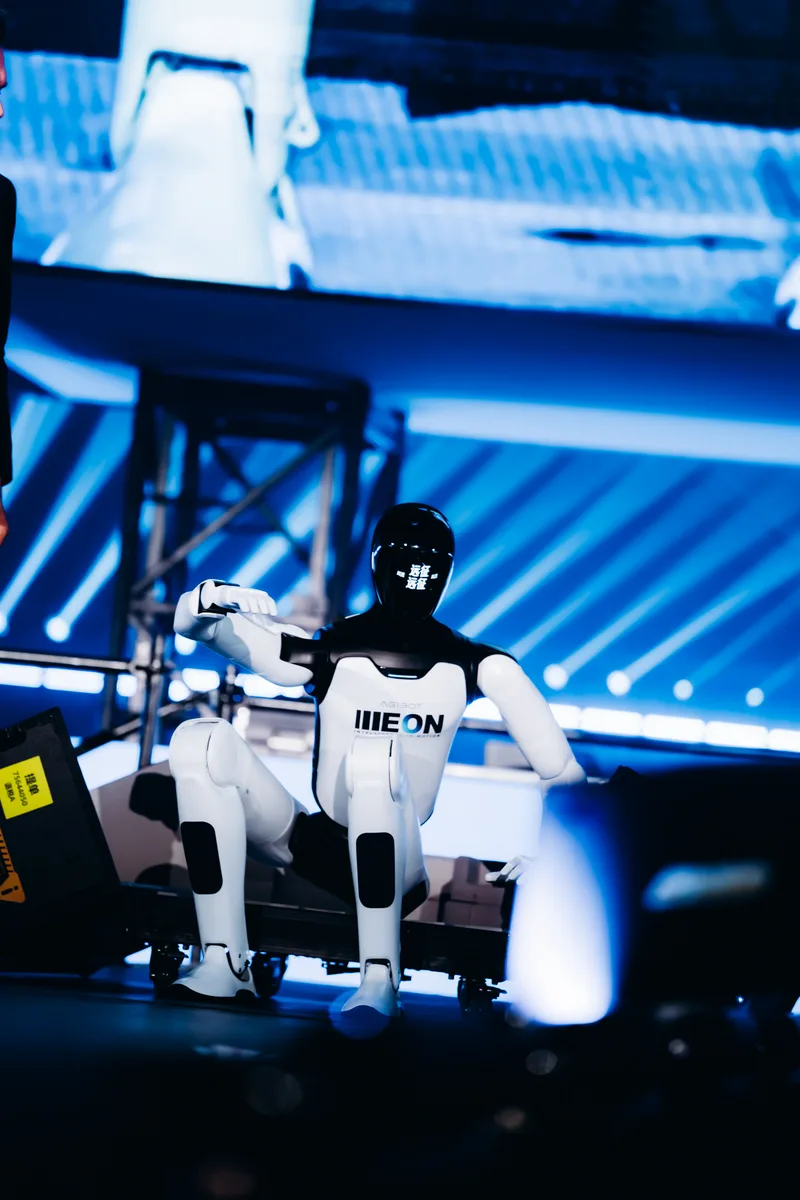
A3 on stage
The same platform live at events — not just a lab demo.

Manuals & robot description
Everything needed to operate A3 Ultra safely or bring its model into your own tooling.
AGIBOT A3 User Manual
The manufacturer's own A3 manual: hardware overview, power on/off, controller pairing, operating modes and maintenance — straight from AGIBOT.
Download PDFQuick Start Guide
The fold-out quick reference: unboxing, battery activation, daily power on/off, basic operation, emergency stop and packing back into the crate.
Download PDFCE Certificates
EU-Type Examination Certificates for the A3 and A3 Ultra, issued by TÜV Rheinland LGA Products GmbH under Annex III Module B of the Radio Equipment Directive (2014/53/EU) — covering the units' Wi-Fi, Bluetooth, UWB, LTE/NR and GNSS radio modules.
Download certificates (.zip)A3 Ultra Robot Description (URDF)
Two variants, same skeleton: the simplified package is exactly what the viewer above loads (decimated, browser-friendly meshes, ~5 MB). The full package is AGIBOT's original, unmodified source — full-resolution meshes straight out of their AimSim tooling, ~8 MB compressed. Note: the demonstration hands aren't articulated in either package (fixed joints upstream in AGIBOT's own file).
A3 Ultra Product One-Pager
Manufacturer spec sheet covering the full A3 / A3 Ultra feature comparison, mechanical structure and sensor suite.
Download PDFAlready have portal access to something else? Sign in directly.
If something goes wrong
Three tiers, in order — we start at the fastest and only escalate as far as the problem actually requires.
Remote access via VPN
Most issues get diagnosed and fixed without anyone leaving their desk — but only once you switch it on. The robot's VPN link back to us is off by default; we have no standing access to a customer's robot, and it's activated on your side to stay clear of data-protection obligations. Once enabled, we connect in over VPN — or through a client device on-site if the robot itself can't reach us — and debug it directly.
Recovery box
If the robot's own networking is the problem, we ship a preconfigured recovery box to site. Plug it in and it opens a tunnel back to us — the same remote access as Tier 1, without needing IT support on your end.
Depot repair in Germany
For hardware damage or anything that needs hands-on work, send the unit back to us. Repairs happen in-house in Germany for a fast turnaround — no routing through the manufacturer.
Not sure which tier fits? Just reach out — support@illeon.de — and we'll triage it.
We're here for the whole deployment
Fleet rollout, a new use case, or a question about a specific webserver module — the Illeon team can help.
support@illeon.de